
Since describing and pointing to my photo galleries back in January this year, I received lots of positive feedback, requests for the templates, and questions asking when they’d be available. Since the galleries are a personal, non-paying hobby, they took a back seat to other more pressing projects. In my spare time for the past several months, I made lots of additions and tweaks to the gallery pages. Meanwhile, I also started generalizing the templates, keeping in mind that I might eventually make them publicly available some day. That day has finally come.
Templates now available
Without putting too much fanfare into this, I’m proud to inform anyone interested that the MT version of my Photo Gallery Templates are finally available for download. Detailed instructions accompany the documentation on the download page. Even better, the design and templates are licensed under a Creative Commons license. So use and modify to your heart’s content!
Features
If you haven’t seen the galleries since I launched them, take a look whenever you have time and poke around. As I stated above, I’ve made a few changes and additions since launching that better fit my vision of what I wanted in self-hosted galleries. Some of the newer features that I really like:
- Originally, comments were confined to a popup window because I didn’t want them cluttering gallery space. Recently, I pulled the comments back inline on the Individual Photo page, and implemented some scripting that hides comments unless the visitor chooses to show them. The toggled comment setting is remembered from page to page.


The comment form is only shown when requested.- Any number of photos can be marked as “favorites” that also show up in a separate Favorites gallery.
- The Remote Rollover effects used to navigate among photo pages are more subtle than what I started with.

And they also work in IE/Win now, albeit the rollover image used is a little different for IE - Mark any gallery as “
hidden”, preventing it from appearing on index pages and feeds. A convenient low-security way to share galleries among a smaller subset of people than the entire world.
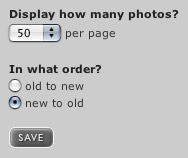
Visitors could originally choose how many photos are shown per gallery page. Now they can also sort the order of photos new-to-old or old-to-new.- RSS 2.0 feeds were added for Recent Photos, Recent Galleries, and Recent Comments, and a there’s a feed for each individual gallery.
No PHP available?
Mid-way through the evolution, I also created a non-PHP version of the templates for those without access to PHP. The non-PHP version is in addition to the light-weight PHP-enabled version I already used. Despite a few limitations caused by not having use of PHP, I discovered little programmatic tasks that could be accomplished by creatively combining MT plugins. So there’s an option between the faster-building PHP-enabled templates, or the non-PHP HTML only templates for those who can’t or don’t want to use PHP. Both sets are included in the template package. The HTML version produces the exact same gallery pages, minus a couple of small features like gallery sorting.
Auto-creating title images
Another consideration in releasing to the public: Not everyone might have the time (or want to take the time) to manually create the large and small title images appearing in my own galleries. So I introduced the option to either MANUALLY-CREATE title images like I do, or have them AUTO-CREATED for you. AUTO-CREATED title images come, by default, from the most recent photo posted to that gallery, or you can choose a specific photo from that gallery instead. For those that still want to create title images MANUALLY, I include my Photoshop files in the template package to use as a base for new title images.
Compatibility
Because of some of the newer tags and structure used in the templates, they require Movable Type version 3 or higher. In addition to publishing existing galleries with my current install of MT 3.17, I’ve also been testing with the betas of MT 3.2. The templates work flawlessly in all the recent betas. I was a little worried in early beta stages, since Photon stopped communicating with MT. But later betas (b4+) fixed the problem, and Photon now happily exports to MT 3.2. Just in time for the imminent final release of MT 3.2.
If you upgrade and use the Photo Gallery Templates, make sure you see the note under Photon Setup about a new API Password.
On the length of documentation
Yikes, I know. I still can’t believe how long that docs page is. I decided to write fairly detailed setup instructions just to be clear. Those of you who know MT well will breeze through it. Those who don’t will have a step-by-step guide to walk you through getting everything configured correctly. The documentation could be cut in half if Six Apart implemented one of my latest wish-list items: Template export/import.
Imagine how cool it would be if one person could get a weblog configured with all the right templates (including Archive File Mappings), export everything to one file, then make that file available to other weblogs (and other people) for automatic import. A few ticks of some checkboxes, and one click of a button, and the weblog is automatically configured with all the new templates.
The list of required MT plugins (15 in total, plus 2-3 more optional) might be a little intimidating for anyone who’s never installed a plugin before. But they’re really easy to install since “installing” basically means copying to your MT plugin directory. Instead of simply listing the required MT plugins, I also provide a link to 6A info and developer download pages, and a brief explanation of how each plugin is used.
There’s an Entry API section for anyone who might find or know of non-Mac/Photon options for exporting photos to MT. And a set of FAQs round out the docs.
Enjoy
As mentioned above, the design and templates are licensed under a Creative Commons license. So you’re free to use these templates however you wish. If you find value to the design, the templates, or anything contained within, I’d love it if you came back to the download and docs page to donate lots and lots of money. I’ll appreciate anything you give. I can’t guarantee any kind of support. But if you have a question, or find a bug, I’ll try to find time to address it in the coming weeks.
Taking a cue from software developers, I’ve been incrementing version numbers and keeping track of changes and additions I make along the way. Mostly for my own sanity. But they might also benefit you, so you know what the latest version number/date is, and of what it consists.
The documentation has plenty to digest, so no need to say anything more here. Enjoy. Cheers. And thanks for your support.
Posted in MovableType, Personal, Site
331 comments (Comments closed)
I’ve been looking for a good example of using MT’s templating and plugins, and this looks to be it. Combined with the design I’ve been looking at every now and then for inspiration, this is probably the best news I’ve read in a while.
Splendid.
These are much better news that the latest ALA redesign. At least, for me! I’ve been looking forward for this day …
Thanks for sharing the great work!
Sounds like you are offering some pretty good stuff. I wish I could use it but unfortunately I can’t because my photoblog is on blogger at Neuro’s Photos.
I look forward to reading more on your blog.
Douglas, you really have spoilt us rotten here. I am truly amazed at the amount of effort that you have put into this for the benefit of anyone and everyone - top bloke!
I have already been using this system based on your original article, but like you were, I am still having problems communicting with MT (v3.2b5) via Photon (v1.1.1). Do you (or any other commenters) have any clues as to the problem? I’m quite literally pulling my hair out!!!
Paul - make sure that you’ve set the new API password in your MT Author profile (as I note in the Photon Setup section). Then, use that password in Photon instead of your normal MT login password. I had done that in earlier betas, but it didn’t work. But with beta4 an beta5, it has worked perfectly. Is that the problem?
LOL! I just tried that again in the vain hope that sods law and the possibility of embarrassment would mean it would now work - sadly that was not the case.
Any other ideas?
Sweet, thanks Doug!
If someone doesn’t beat me to it, I’ll try converting it to WP templates tonight or over the weekend.
Easily my favourite photo gallery template :D
Hey, can anyone post the dirifyplus archive/code? The site it’s on isn’t working and this is one of the plugins I need.
Tom: The developer site for dirifyplus has been having lots of problems. A month ago, the domain wasn’t even responding. Now the plugin disappeared from the site. I’ve seen rumors about the developer not being around anymore, but haven’t confirmed that.
Seeing as how the site is so flaky, and this is one of the required plugins, I uploaded a zipped version of dirifyplus. Unzip, and copy to your MT plugins folder as usual. Also added this link to the template docs under the dirifyplus description.
Thanks :)
Now to figure out how to post without using iPhoto (I’m on Linux).
Umm, this isn’t good. Any clue on how to fix?
Unsupported file manager MT::FileMgr::Local: Global symbol “$content” requires explicit package name at lib/MT/FileMgr/Local.pm line 154. Global symbol “$data” requires explicit package name at lib/MT/FileMgr/Local.pm line 154. Unmatched right curly bracket at lib/MT/FileMgr/Local.pm line 155, at end of line syntax error at lib/MT/FileMgr/Local.pm line 155, near “}” Compilation failed in require at (eval 22) line 1. BEGIN failed—compilation aborted at (eval 22) line 1.
Wow I never knew MovableType could do this. Great skins.
This is awsome, thanks a million Doug!
Tom (11): Not sure where an error like that comes from. Doesn’t look like it’s a result of trying to use the templates. Where and when did you see it? Never seen any type of error like that, ever.
Well, I fixed it by updating to the nightly of the beta. Works now. And in your listing of templates, comments/index.xml is supposed to be comments/comments.xml and galleries/index.xml is supposed to be galleries/galleries.xml too; that’s what the downloaded templates use.
Douglas, I was one of those who asked for the release of the templates, I never imagined you would put so much work into it.
As soon as I have a second to breath and find the time to try it out, I will defenetly donate. Very well worth all the work.
Very impressive.
Everytime I think I accomplish something with Movable Type, Doug has to wave his magic wand and turn me into a pumpkin. Keep up the good work!
Wow, this looks amazing. I know what I’m doing tomorrow!
Thanks for sharing…
Inspired me to redesign my plog (photo log)…
Wish you all the best…
I don’t know if it was a typo on your part, but the cool next/back roll-over links on the image work on both Safari 2 and FireFox on my Mac (perfectly btw) :D
Being a WordPress user myself I don’t have a lot to use them for just now, but I thought I’d just leave a ‘congratulations, you rock!’ note, based solely on the fact that the templates are so inviting to use. Good job and all that.
Thank you so much, Doug. I’ve been waiting for this since months, and you finally did it! Thanks again.
@Andrew (http://leftjustified.net)
Are you serious?! Because, converting these templates into WordPress format will begreat news for the WP community! (incl. me;-)
Will you share some more info in your website soon?
@Doug
Extraordinary!
Keep up the good work! :-)
Thanks so much for this! I’ve just been going crazy trying to set up a photoblog when I found your site. I’ve installed everything, but nothing seems to show up in the index page. Am facing problems with photon as well…darn server error thingy. Hopefully, will be able to solve it and have a photogallery as gorgeous as yours! Thanks again!
These templates are really beautiful, but what are some advantages to using this system versus using others like Flickr or Gallery? Clearly, two reasons could be total autonomy and self-containment within MT, but are there disadvantages as well?
Hi again. I just realized that the html version of the galleryinfo is missing from the download. There one in the php folder (t_galleryinfo.php), but no corresponding one in the html folder. Is it important or can I just forgo it? Thanks!
Nicely put out there Doug…. thanks. Though I can’t use it, this is a fine example of the goodness your spill out to the community.
So a general thanks is due anyway.
Best,
Steve
sooyin (26):
galleryinfo.phpis a small include containing shortcuts only needed by the PHP version. It’s intentional that at_galleryinfo.htmlis not in the HTML folder.galleryinfo.phpcontains several gallery-level variables and arrays that the HTML version can’t use. Thus the HTML version must go about generating that information the long way, and for every gallery file.Donald (25): The advantages/disadvantages weigh out in the community aspects of tools like Flickr. Because Flickr hosts millions of accounts, you can easily see photos from your friends, contacts, or people you don’t even know. Tagging and groups and pools and notes are all part of the advantages of using something like Flickr.
I still have a Flickr account, and use it occasionally. But to me, there’s something about maintaining a set of gallery pages that I have complete control over. I never need to worry that ads will show up on gallery pages, or that someone will change the design to something I don’t like. If I don’t like something, I can change it. If I really like something, I know it will stay there until I change it.
With Flickr, you have a whole team of people building upon and improving the application (now even more resources through Yahoo). With these templates, it’s more relying on yourself (and a little of me or the community). Kind of like the difference between sailing your own boat in the open water with a few friends, and taking a cruise on a huge ship with lots of people. “Whatever floats your boat” kind of thing…
Maintaining your own galleries doesn’t prevent you from participating in other photo communities. You can spend time in both. It’s just a matter of preference, what you want, and where you like to spend your time. Maybe you have lots of photos you want to share, but you wouldn’t put them all on Flickr, but you would include them in your own galleries? Maybe the inverse? Up to you.
Great job, Doug! As always, I’m very proud of what you do, and that others have an opportunity to benefit from your efforts.
Mom
I am new to blogging and I have been looking for good photo gallery software for the last week. Your stuff looks awesome and has some great functionality.
I’m so glad you posted the templates yesterday! Perfect timing! I will snatch them away before you start charging!
Cheers! - Dirk.
Would it even be possible to port this theme over to WordPress with all the plugins that it requires?
Anybody who manages to will have my eternal gratitude!
This is a wonderful and very impressive theme Doug, congratulations! I’m just looking on enviously from the sidelines for now.
Just a quick question, not sure if you’ve answered it already…
Can this Photo Gallery be set up on an existing MT setup just by adding another Blog or do you need a separate installtion for it to run?
Thank You!
Nvm previous comment.
Awesome, got it working perfectly. Great job Douglas!
Is there any Windows platform software that is similar to iPhoto it’s quite tedious organizing and uploading my photos manually…
I don’t see all the template. I saw something that just had the pictures layed differently. Where are the rest of the templates? Are their various version with colors etc.?
Yes - if I use a template, I plan to send the suggested donation to our good friend Doug!
Although I don’t use MT at all, the template looks brilliant. It’s clear that you put the effort into the work that makes your reputation so good.
I’d love to see this for a Coppermine system or something alike.
I think the templates are beautiful, but I have been unable to figure out how to manually upload the photos so they appear as galleries.
I am using Windows so there isn’t to my knowledge any way to automate the process like you can on the Mac.
Any ideas?
Douglas -
I’m not sure if you’ve seen TypeMover? http://www.zonageek.com/software/mt/typemover/
Since it allows you to export settings, templates, entries and so on and so forth, wouldn’t a blank weblog with the photo galleries set-up (I’m not sure how far it takes into account plugins) with an export do the job?
(I’m sorry if this has been accounted for — I sort of skimmed the above…).
Great work though. Cheers!
Naz (39): No, hadn’t seen it. TypeMover might be a possibility. The person “receiving” my exported weblog/templates would also need to have TypeMover installed to import the whole thing. But if it works to export from one server and import on another with a different database, this could open up new doors in terms of template distribution. I could even include a few sample entries by default and the corresponding photo files, which could be deleted once the importer has everything working and in place.
Hmm. When I get my next batch of free time, I’ll have to test TM to see how well it works for the idea of template/settings distribution. Thanks.
trivial/OT/FYI comment…
THe height attribute in the img tag on /photos/office/ doesn’t quite match the file… making it stretch.
There is a discussion over at textpattern forum re your wonderful templates and requests to migrate them to textpattern. I have offerd to do the task. Please let me know if this is acceptable to you. Due credit will of course be given.
Thanking you
Hi Doug,
Thanks lots for the reply! I find it amazing that there are people like you who generously share your knowledge with everyone else. When I have time to set everything up, will definitely be donating for this piece of excellent work! =))
This is brilliant, Doug. How good would it be if Six Apart incorporated this into its basic Movable Type set-up? I am not too good when it comes to stuff like this but I love these templates so much that I am going to give it a burl. Of course, there is money to be made from installing these templates for dumb folk like me. Now that’s an idea!
Great templates, and great documentation. Thank you!
I did notice after getting everything setup and uploading a few galleries that Photon uses the same upload path for all your images, and there does not seem to be a way to make it upload to a directory based on the category. So all my gallery images go to the same folder.
Since many images in different galleries have the same name (e.g., DSCF00016.jpg), I’ve found that uploading a gallery could replace existing images from other galleries.
This is, of course, not anything to do with your templates, but I’m wondering if you discovered this problem with Photon, and how you got around it. I could edit the upload path for images each time I upload a gallery, of course. I was curious if you’d found a more automatic way of doing so.
I am glad that so many people seem to enjoy your galleries. I have had the pleasure of enjoying your continuous efforts for some time now and know how much my friends and family have taken pleasure in viewing the galleries. I don’t know if people can really understand how much time you have put into this. I hope that if people are pleased with your work that they will take the time to donate. Your generosity doesn’t go unnoticed. Thank you for such a great gift.
joel (45): I did notice this early on. I intended on noting this in the docs, but apparently left that mention out. Originally, I was changing the upload path for every gallery, placing images in their respective gallery directories. This got old after a while, so I started putting all of them in
i/and leaving that setting for every gallery.When using Use original file name or Use title. there’s an easy possibility that you could end up accidentally overwriting certain images. My camera was initially set to restart numbering of photos after every sync with iPhoto, so I was getting images with the same name. Thus the original file name is a bad idea in this case.
So I tried Use title for a while, which worked, until I accidentally named several images with the exact same generic titles. This causes additional problems since entry titles are derived from the image title in iPhoto, and file names come from the entry title (meaning Individual Photo pages get overwritten too).
So that leaves option #3: Use time stamp.
This is the option I recommend. Unless you’re shooting rapid-fire burst images faster than one per second, the time stamp will keep all your images named with unique names, down to the second they were taken.
I updated the docs under Photon Setup with a cautionary note to this effect.
(Of course, this is assuming you’re not uploading the exact same photo to multiple galleries, which I don’t recommend. If you realy need a photo in more than one gallery, use MT to add additional galleries (categories) to the entry after it’s already in MT.)
Doug,
Cool, good call. I had completely overlooked that option in Photon. Until I get a rapid-fire camera (which I don’t see happening), the timestamp works just fine.
Thanks again!
Doug,
For those of us using Windows, can you let us know what the directory structure is on the server side so we can manually upload photos into galleries?
I figured out how to add the gallery names using the categories, but not sure how to add photos. Also is there a way to manually input the appropriate data into MT so it labels everything correctly?
If you look at the url in my signature you can see how I set it up. I’m curious if I’m missing something.
Thanks! Great work on these templates!
Hi Doug,
Many thanks for the templates. All your time and effort has saved me many days work! I was just starting to put together a photo gallery and will now use your design and templates. (donation on it’s way)
The classic slide view is excellent.
Just one problem though when viewing a gallery (all other pages fine):-
PHP Notice: Undefined index: quantity in \photos\meta\functions\gallerylimits.php on line 6 PHP Notice: Undefined variable: quantmatch in \photos\meta\functions\gallerylimits.php on line 14 PHP Notice: Undefined index: galleryquantity in \photos\meta\functions\gallerylimits.php on line 33 PHP Notice: Undefined index: start in \photos\meta\functions\gallerylimits.php on line 54 PHP Notice: Undefined variable: prevstart in \photos\meta\functions\gallerylimits.php on line 94 PHP Notice: Undefined variable: nextstart in e\photos\meta\functions\gallerylimits.php on line 95
Any Ideas? Thanks.
Yes, Ian. I’m getting the same thing…
Ian and Shawn: I’ll look into this when I get some time. Have any pointers to your galleries, just so I can see what kind of content is already in the system? If you don’t want to post them here for any reason, send me a link via the contact form.
Meanwhile, if any other PHP gurus run into the same problem, feel free to post the fix, and I’ll incorporate. I’m no PHP expert, so I can’t guarantee the PHP functions are flawless. But I’d like to get them as close as possible. Thanks.
The file gallerylimits.php assumes some post variables have been set. I’ll look into why. From my first look it also seems like you might assume more than 1 or 2 pictures in a gallery.
You’ve done pretty well with the PHP you’ve written…
Woohooo! Thank you. Thank you. Thank you Doug!
I jumped off my seat when I read this and started to scream (and my wife thinking that I was becoming crazy or something). Great thing you’re doing for the rest of us. I’ve been waiting for this day to come. Keep it coming.. and we’ll keep the donations coming too. :)
Thanks a lot for making your wonderful templates available for everyone!
I have MovableType installed with two weblogs.
http://www.ashleylangford.com
and now
http://www.ashleylangford.com/photos
Photon exports if I point to the first (under Account Information) but your templates are setup at the second. I’m sure this is a configuration problem with Photon. Anybody have any ideas or luck using a similar setup?
Nevermind. User error. Works perfectly. Nice work!
What a great work!
But after doing everything step by step I run into the export issue in photon as well: “Server Error: Server” after two Images are successfull uploaded (I can see them in the folder) and 3 Entries are made in MT (but only the first has the correct category).
Then when trying to rebuild the blog I get the following ERROR:
When rebiulding Category Pages:
Can’t locate bradchoate/keyvalues.pm in @INC (@INC contains: /home/htdocs/web2/html/mt/plugins/spamlookup/lib /home/htdocs/web2/html/mt/extlib lib /usr/lib/perl5/5.8.3/i586-linux-thread-multi /usr/lib/perl5/5.8.3 /usr/lib/perl5/site_perl/5.8.3/i586-linux-thread-multi /usr/lib/perl5/site_perl/5.8.3 /usr/lib/perl5/site_perl /usr/lib/perl5/vendor_perl/5.8.3/i586-linux-thread-multi /usr/lib/perl5/vendor_perl/5.8.3 /usr/lib/perl5/vendor_perl .) at /home/htdocs/web2/html/mt/plugins/mtkeyvalues-1_53/keyvalues.pl line 34.
—-
I came so far, but now I get lost ;o(
Can anybody help? pls!
Best wishes,
Chris
Sorry for one of the BUGs!
silly me, forgot to copy keyvalues.pm into the right folder ;o)
BUT: the PHOTON upload BUG remains ;o(
Brad’s site appears to be down, can anyone else host the KeyValues.pm file in the mean time? or email it to me =)
Cheers!
found a bug, the individual archive file path needs to be changed to “/gallery/%f”
This is a bug when two entries within the same gallery/category are titled the same thing, by changing the new archive file path the URL will include the basename.
I get a Forbidden error message when trying to view my gallery. Also this can’t be good?
the file it’s trying to find is “www/movabletype/photos//galleryinfo.php” (notice the two //) most likely you have your site root publishing path set incorrectly with an / at the end… if you have one there, remove it. that should help you out
I removed the forward slash but still can’t get it to work. I’ve gone over the install docs a hundred times but I still can’t figure out what I’ve done wrong. Is there a paid install option?
Anthony (62 & 64): From looking through your photo and index page, it looks like something is wrong with one or more of your Category Archives or the Archive File Paths. Looks like you have a category named “BMW”. But no document is getting published as your Gallery Title page (causing the permissions error). And your individual photo page isn’t living correctly within a [gallery name] directory. If the category was working correctly, your individual photo page (linked above) should live at:
/movabletype/photos/bmw/gallery/artgallery.phpNote the bmw/ in the file path. This also means there’s no galleryinfo.php to include (thus the PHP include errors on the Individual Photo page). If all your Category Archive templates are in place, and the Archive File Paths are all correct, maybe you’re missing one of the category-related plugins?
Kevin (61): As I noted in my direct response to you, I’m looking into this. For others, I think
%fis a new shortcut in MT 3.2, thus it wouldn’t work in older versions. I want to make sure these templates are still backwards compatible for users who haven’t upgraded their install. If I come up with some other fix to account for photos with the same title, I’ll update the docs and version number. Thanks.Chris (59): Multiple things could be happening to prevent Photon from uploading/publishing correctly. I’ll respond via email.
Fixed it! Under Archive Mapping I didn’t have Category checked. Thanks Doug, donation sent.
I seem to be having a problem with my photos area. The photos that I upload with photon appear in a weird area, above the gallery area. Any idea what might cause this?
Ted (67): What’s the gallery name for the one you have now? Does it contain a double-quote or single-quote character? Somehow, processing of MT tags is stopping around the gallery name area, leaving MT tags in your HTML and rendering incomplete HTML.
A quote character in the gallery name is my first guess. Doesn’t mean it’s your fault — I tried to build in allowances for quotes, but I might have left that out for gallery (category) names. Which means I’ll need to update the templates if so. Let me know.
Otherwise, this might also indicate one of the required plugins isn’t yet installed. The primary plugins related to the area that’s malfuntioning for you are: Arithmetic, Collate, Compare, DirifyPlus, Entry, FilterCategories, Grid, and KeyValues. Whew, a lot for one little area. Got all those?
The templates are simply amazing. I’ve implemented them on my site, but I’m noticing a 404 error message for the following file:
/meta/img/bg_pasth.gif
It doesn’t seem to be in the Windows Zip file I downloaded.
Also, has anyone here come across a Windows program that has the capabilities of Photon on a Mac? Entering entries by hand is tedious at best, and I’m not quite ready to go digging into the MT code to change the upload file template. I can’t seem to find a decent program for interacting directly with MT.
Again, great work, and thanks for sharing it!
KM
Kyle (69): Check your meta/css/photos.css file and search for the
#pathselector. Seems like something might have been modified there. Make sure it calls the background image “../img/bg_path.gif”, and not bg_pasth.gif.There is no file in the template package that uses a “bg_pasth.gif”.
The MTCategory plugin link has gone 404… The links to the plugin from the template tutorial and even from Sixapart all produce the 404 error page. Does anyone have a zipped copy of the plugin that they would be happy to share?
Roger (71): Looks like David somehow deleted a page from his wiki. Googling for it also turned up his original blog entry on the Category plugin where it’s still available for download. Docs updated with new link.
I’m so excited to get this going! I’ve been waiting eagerly.
but..
The Expressions plugin page has exceeded it’s bandwidth limits (I imagine that’s your doing.. ;) and is no longer serving pages.
Anyone know of an alternate link to get Expressions?
http://kalsey.com/blog/2003/01/expressions/
Anthony (73): Until Adam gets Kalsey.com up and running again, get Expressions here.
NOTE: Expressions goes in a unique location, NOT in your normal plugins directory. Instead it goes in a new directory named “MTPlugins” within the extlib folder. (You’ll most likely need to create the MTPlugins directory.) So the path to Expressions should be:
[mtdir]/extlib/MTPlugins/Expressions.pmI just wanted to take a moment to thank you for releasing these out into the wild. Using your earlier post about your photo galleries, I had cobbled something together on a much, much, much simpler scale, and was thinking about trying to ratchet it up for a personal blog my wife and I keep.
Instead, I was able to get these up and running, and have a full gallery transferred in less than a day (of course, it helps if you’ve already been using Photon and don’t have to tweak that too much). It could have been a lot less, actually, if I hadn’t wanted to go the manually updated title images route.
I’ll be making my thanks more of a monetary one in the near future, but I just wanted to let you know how much these templates and the hard work behind them is appreciated.
Re: PHP errors.
Ian and Shawn: I’ll look into this when I get some time. Have any pointers to your galleries, just so I can see what kind of content is already in the system? If you don’t want to post them here for any reason, send me a link via the contact form.
Meanwhile, if any other PHP gurus run into the same problem, feel free to post the fix, and I’ll incorporate. I’m no PHP expert, so I can’t guarantee the PHP functions are flawless. But I’d like to get them as close as possible. Thanks.
There seem to be a few anomalies in the code. Is photo-templates-1.0.2.zip the version I should be using?
1)
There seems to be no action to save the cookies in the gallerynav.php on line 10.
echo ' [form action="./" method="post"]'."\n";(changed brackets so it’d show up)
2)
In the Photo Gallery index.php, line 12, a call to GalleryLimits is made. GalleryLimits assumes POST variables are set and fails because the array indicies aren’t set. Various other cascading errors occur down the code.
Possible solution?
It seems as though code is missing from the Gallery Title’s index.php to either read cookies or use default values for page size (and others?) and pass them into the Photo Gallery.
3)
There is also a GET variable, “start”, that should be set before GalleryLimits is called.
p.s.
I’m developing this on my Windows system, in order for me to show it to you, I’d have to setup MT on my linux host…
Thanks Big Doug! This is a real help.
Richard (49): In Windows, one way to add photos is to create a new blog entry, and then fill out the entry form using Doug’s API model. Each of the MT Fields Doug specifies corresponds to a field on the entry form.
For example, inside “Entry Body” put <img alt=”[title of photo]” title=”[title of photo]” src=”[full URL to normal-size photo, including domain name]” width=”480” height=”360” />
Phil (78): Thanks for the information. I was able to get it working finally. There are some issues still that I am working out, but I think it will work. I just wish someone would port Photon or create another tool for Windows that would automate the uploading and creation of all the necessary fields. Manually will just be too much work for me.
I love the templates though. It’s too bad I don’t have a Mac any longer. :(
First of all, like everyone’s been saying, these are amazing! Thank you so much!
Second of all, I’m having a problem that I think is my fault, but can’t figure out where to fix it. When I create a category/gallery in MT, it’s not creating a folder. So, when you click on the gallery link it gets a Not Found error (EG: http://photo.coffeepostal.com | click on a gallery and you’ll get nothing).
I’m assuming somewhere I missed a step in telling it to create folders for each of the categories, but I’m not finding it.
Thanks again!
Richard (79): Working on it. Will ask Doug to link to it when completed.
Douglas,
thanks so much for all the effort. I was already waiting for you to post this.
One question. With your template i am missing the possibility to click on an image and get a higher resolution displayed (or original size however you want to put it).
Do i miss something or is this just something you didn’t need and you were happy with the relatively low-res display in your galleries?
Thanks,
Stefan
Is it possible to increase the size of the pictures? And if so which template do I modify to do so. I would prefer my pictures to be 700x525.
Stefan (82): Since Photon only allows export of two image sizes, I never built in a link to a third hi-res image. I guess iPhoto’s other export options could be used to generate an extra set of larger images, then you could manually FTP them to the server yourself.
The only catch to be aware of, since these larger images aren’t getting exported to MT, is that MT will have no knowledge of the hi-res image file name, And iPhoto isn’t capable of “dirifying” image names on its own, thus image names will have spaces in them. A way around this is to use BetterHTMLExport, but then that’s another plugin you need.
It wouldn’t be hard to create an extra link somewhere on the Individual Photo template (left or right side) that links to the full image. Just be aware of the image name, and how those are linked together.
Anthony (83): No templates need to change to use a larger image size. Those changes would all be in the style sheet (
photos.css). There are quite a few spots in the CSS that you’ll need to change, since there’s some complex floating and margins and padding going on to generate that page.I have tried to install the galleries, and as far as I can tell, I have set up the system as detailed. The main problem I have is that although Photon uploads the images fine, they are not displayed as entries on the main page (you have to search for the entry) and when it is clicked, it returns several errors.
In addition, the mt blog seems unchanged other than that it does not display entries. I have rebuilt the site several times. I suspect that there may be a problem to do with where I am uploading the files onto my server.
Currently these are located in my public_html in a folder called “photos”. I have installed the MT files within this folder, and the “meta” folder has also been uploaded into the “photos” folder. If it is of any relevance, this was a clean install of MT purely so that I can use the gallery templates (I will be using my index page for other purposes).
I would appreciate any comments or assistance; have I uploaded the files into the wrong place; does the entire “photos” folder need to be in the cgi-bin; is there anything I might have missed out?
Any one use ASP.NET w/ these wonderful templates?
I’m just wondering hwo I might use them.
Thanks!
Jim
Everything seems to be working wonderfully for me except one thing: Everytime I post a new entry/photo, I get this error:
An error occurred:Building category '54' failed: Build error in template 'RSS: Photos by Gallery': Error in tag: Error in tag: Error in tag: Category '' not found in Blog '14'
This doesn’t stop the entry from being published, it just stops at that white error screen.
If you can help, that’d be great. Otherwise, everything’s great and it’s wonderful that you’ve released this. Hopefully someone will figure out an easier method for Windows users though.
I had to make very minor modifications to 2 template files and 2 function files to get it to work with PHP on my Windows machine. I personally don’t know how this has been working with other installations, Linux, Mac, whatever. Maybe people are using the non-PHP, static version???
Thanks Doug for the work on this.
Function files:
Catorder.php
1. On line 5, remove the “Less than and equal to” and replace with “Less than”. The symbols screw up posted comments.
gallerylimits.php (biggest changes)
1. After the function entry, put two new lines:
$newquant='';$neworder='';
2. Wrap the whole check for quantity in lines 11-17 in a block:
if ( isset( $_POST['quantity'] ) ){
...lines 11-17...
(move out order code into next section)
}
make sure that the $quantities array declaration is out of the isset block.
3. Wrap the whole check for order in lines 21-26 in a block:
if ( isset( $_POST['quantity'] ) ){
...lines 21-26...
}
4. Insert the initializations before line 80:
$prevstart=0;$nextstart=0;
Template files:
t_gallerytitle_auto.php
1. Fully qualify the link to the gallery index page:
Line 20&28: href="gallery/index.php?start=1"t_photo.php
2. Fully qualify the link to the gallery index page:
Line 97: href="gallery/index.php?start=1"I’m not sure if I missed anything and I only checked the files that I was using in my gallery. If you want my four files, I’ll post them on my website caseys.kcfilms.com.
My gallery will be up soon!
Ignore my Template file modifications and put the following after the initializations in gallerylimits.php on line 80:
if ( !isset( $_GET['start'] ) ){
$start = 1;
}
Shawn & Doug
Made the changes to the php and everything now works correctly now. Thanks.
I also had to use isset when getting contents of $COOKIE.
Are the changes required for Windows only or will the same changes be required when I port to linux?
It’s all very impressive.
I don’t see any fundamental difference between the PHP implementation on Windows and Linux. Having said that, no one else is having problems (anyone else using PHP?) and I haven’t yet uploaded it to my Linux server to test it.
I just installed these wonderful templates to a new blog (well I’m redesigning my entire website). Anyways, I was wondering if anyone has come up with a way to export an album on Windows XP to the blog. I can’t seem to find anything close to this Photon program, it is really making me envy all the Mac owners out there. (I wish I’d gone mac; I suspect I will next computer purchse.)
Hallo,
i have followed your instructions for the gallery but when i go to see my page i receive the 500 Internal server error
In the log file the error is:
[Fri Sep 02 09:06:07 2005] [error] [client 82.107.45.86] Premature end of script headers: index.php, referer: http://www.nikynik.com/cgi-bin/mt.cgi?__mode=cfg_archives&_type=blog&blog_id=1
&id=1&archives_changed=1&saved=1
WHERE IS THE PROBLEM?
—
At this address http://www.nikynik.com/wpstyles i have in the folder root the .htacces for wordpress is this the cause of the error?
thanks from Nikynik
I have managed to set up the galleries correctly but I’m having problems with the image display as the shadows on the right hand side seem to go about 1cm too far right than they should, so I end up with a grey strip down one side of the photo.
I’d also be interested to know a basic workflow for creating basic manual title pages for the galleries; although I’ve managed to work out how to add images to the example psf file, I’m a bit of a novice as far as photoshop is concerned, and so I would be interested to hear of any quicker methods than cropping the original photos and overlaying them, rotating the photos which will be placed on the “slides” below and then trying to get them exactly on top of one another.
And it’s brilliant when you FINALLY work out how to do something about 5 minutes after you post it in a comment. I just realised that the slides on the title page can be made by using the “bg_slide.psd” file.
Still having problems with the shadows issue though.
I seem to be getting a 404 error, URL not found, when I click on a gallery, even though it seems to be the correct URL.
Is a category (gallery) meant to create a folder on the server with an index.php in?
If so, how do I make it do this?
(as it not doing it at the moment)
Anyone else had this problem and know how to solve it?
thanks in advance, and thanks to Doug for the brilliant templates…
Hami
Tim (96) I in your camp - 5 minutes after posting I fix something that I’ve been trying to fix for hours.
I didn’t check the tick boxes of the Archive Mapping, which tehn allowed me to select ‘individual’ as the Archive Type.
Hope that helps anyone else with the same problem…
thanks
Hami
Douglas (84),
thanks very much! That answer gets me going.
Nice work and useful as a resource. Something like this has been lacking for a long while, and I applaud your intiative. Keep up the good work. One day I hope to be in a similar position of use (check url).
There doesn’t seem to be a Windows alternative to iPhotos. Picasa is similar, but works with blogger only.
I tried adding a image manually into a category called london. The category link was http://www.ddd.com/london, when I click on it I got a 404 message. Seems rather complex.
Looks like I might be investing in a mini mac soon! Off to Ebay!
I’ve a few people post questions about how to manually upload galleries and such (for all the Windows ppl)… but so far no answers! Can we get just the file structure to begin with? Any help would be great!
Tim (95 & 96): Most likely, your camera shoots at a different proportion to the images I used as a base for these templates. See the note in the docs under Requirements about the 4:3 ratio. Doesn’t mean you can’t use the templates though. You may just need to tweak some values in the CSS to account for a different ratio of image size dimensions. If you look in my galleries, the images are all 480x360, or 360x480. If you’re using 480 as a max for both width and height, chances are, if your camera output ratio is different, your image will be 480xsomething else. This needs to be accounted for in the style sheet.
All the changes would be in
photos.css, and most all should involve rules that use#photoin the selector.Richard Gates (49) and Johan (102): The structure on the server is flexible and up to you. As the docs note, you just need to choose where your photos root is (whether it’s the root of the web server, or some subdirectory at any level). Once you have the photos root determined, within that directory goes:
—> [photosroot]/meta/
—> [photosroot]/galleries/
—> [photosroot]/comments/
The template pack contains the entire contents of the meta/ directory, you create the other two directories.
Other than that, MT creates the rest of the structure for you, assuming you configured the MT weblog according to the instructions in the template docs. Where the photo image files live is entirely up to you, since
<img>elements in the entry fields use full URLs also of your choosing. For simplicity’s sake, I configure Photon to upload all images (no matter from what gallery) into the same “i” directory. So all my images from recent galleries are located in one directory:—> [photosroot]/i/
Remember, there’s a full Entry API in the template docs so you know how to create entries in MT (as for what goes where) that work with these templates. Hopefully someone can create some kind of automatic export-to-MT option for Win and/or Linux users.
I have just recently upgraded my MT system to 3.2 and since that went os smoothly, I decided to try my hand at your gallery (something I have secretly always wanted). I have successfully followed all of your instructions until the very last section. I don’t understand them and I was wondering if you could Dummie them for me. I am including the section I do not understand:
# Add Custom Archive File Path for Individual Photo:
/gallery/.php
# Add Custom Archive File Path for Gallery Info:
/galleryinfo.php
# Add Custom Archive File Path for Gallery Title:
favorites/title.php/index.php
# Add Custom Archive File Path for Photo Gallery:
favorites/index.php/gallery/index.php
# Add Custom Archive File Path for RSS: Photos by Gallery:
/index.xml
Thank you
Linda
Hey Linda (105): Those Archive File Paths tell MT where to publish automatic archives (in this case, all of the gallery pages that aren’t one-off index pages — those that have variable locations based on a gallery name).
Anyway, those paths are custom paths written just for these templates. In MT3.2, go to Settings > Publishing, and look down the page at the Archive Mapping section. If you haven’t already, go ahead and click the “Create New Archive Mapping” link to add new Archive Types, matching pulldowns as the instructions indicate just above the section you included here.
Once you do that, you’ll notice MT 3.2 introduced some basic default paths you can choose from pulldown menu next to each archive type. There’ll be one pulldown for each Template Type you added. If you select that pulldown menu, notice the last option is “Custom…”. Select Custom…, and the pulldown should turn into a text input box. Copy and paste each Archive File Path from the instructions into the corresponding text field for that template type (after selecting Custom for each one).
Has anyone modified the CSS to accommodate a different ratio, say something like the Rebel XT (3:2)? Also, I’m looking for something with a larger maximum width, say something like 700 or 750. Anyone got this already?
Thanks in advance for your help!
Ashley
Ashley:
I have the rebel XT and thanks to Doug’s hint, I was able to sort out my gallery so that the shadows display properly etc by modifying the CSS as was stated.
The easiest way to do this is as follows:
Open meta>css>photos.css in TextEdit/Dreamweaver to change the file
Search for all instances of “380” and replace with “340”
Then upload the modified file and Rebuild your site
(I initially tried “320” which is the size of the Rebel XT’s uploaded images but this will lead to the shadows stopping short of the edges as the white border which the templates apply is presumably 20px wide. By adding 20px to the photo size in the photos.css you can ensure that the shadows are placed in the correct position).
I’m a total css newbie, hence the questions beforehand, but this was REALLY simple so I’m sure no-one will have any problems, regardless of their experience levels. Just don’t forget to rebuild the site
NB.
Careful which parts of the CSS you edit or you will start to disrupt the “No comments yet”/”x comments so far” part of the page
I have the Rebel XT taking shots at 3x2 ratio. I have modified the css script to work for me. There are many things in there you’ll need to worry about if you change the ratio, like all your shadows will be off, the mouse hover areas need to line up, and the thumbnails will be off center from the background slides. I too would like to have larger viewable images but didn’t really figure out how to do that since it gets a little tricky when the larger size gets higer then 480. Maybe an alternate link somewhere that would link to the full resolution image. This would most likely have to manually be inserted since Photon only supports uploading two images, not three. Maybe within the next month I will find some time to adjust it all to figure something out, but for now here’s the copy of my CSS file that supports 3x2 ratio images.
http://www.kevinstory.net/meta/css/photos.css
Thanks so much Kevin! I’ll work on the larger image size. If I get it working, I’ll share it here.
BTW - You’re photos are good. You have a good eye.
It’s me again. The non-techie who is always getting over her head.
I cannot get my photos to show up in the gallery. Actually, I don’t think the gallery is showing up because what I see is a basic MT template.
I DO NOT have Photon. I have a windows based system. I have recently installed MT 3.2
I created a category called test. I uploaded one picture there. The diminsions I used are 400 x 300.
I entered a title and category. I entered the image path in the main entry field, the thumbnail path in the Extended Entry field and a short sentence in the exert field. It set to publish,no line convert, no comments, no trackbacks. Everything works fine I think but when I rebuild my image is not seen, no category either. Nothing, just an empty blog. Is this a gallery problem or a MT problem? Thanks for putting up with me.
Linda
Linda:
This is exactly the problem I had before.
Instead of using the PHP templates, follow the instructions for “ADDING TEMPLATES TO MT” and go through all the template pages, substituting “html” for “php”. The gallery should then display.
For Windows users it’s pretty simple to use Picasa and an FTP client to create albums and use Doug’s layouts.
Pretty much, all I did was create a web export template in Picasa that resembles the import format for MoveableType. The only glitch is the date which MoveableType requires. Picasa has no tags to allow a user to export the EXIF date from a JPG. To work around that I export the filename (which for me are the timestamps when the picture was taken using PIE, Picture Information Extractor) as the date and then use a PHP script to convert them into the MT date format.
It seems pretty complicated but once my albums are all organized in Picasa it takes me less then 30 seconds to generate all the relevant import files and format them. After which, all that remains is uploading the JPGs via an FTP client.
For those of you who are interested in the code, or if Doug, you would like to view/post it along side the your gallery templates email me@askthefool.com
Ashutosh
Greetings Douglas,
You have created mind-blowing photo gallery.
But there is a little glitch with my installation. Hope if someone can help.
I get the following errors.
I think its because of the relative URL stuff. Notice that there is no slash between my photos and meta where actually meta is under my photos directory.
Warning: main(/public_html/photosmeta/templates/modules/mod_footer.html): failed to open stream: No such file or directory in /public_html/photos/index.php on line 78
Warning: main(public_html/photosmeta/templates/modules/mod_footer.html): failed to open stream: No such file or directory in /public_html/photos/index.php on line 78
Warning: main(): Failed opening ‘/public_html/photosmeta/templates/modules/mod_footer.html’ for inclusion (include_path=’.:/usr/lib/php:/usr/local/lib/php’) in /public_html/photos/index.php on line 78
Hope this can get sorted fast.
Also, How do i upload photos and where do i upload them.
I am on the windows platform.
Thanks,
Sharvil
Sharvil (115): It is likely you forgot a / at the end of your blog URL in your MT config. You upload photos to the location of your choosing, and specify the location when making photo entries. (It is explained in the comments above.)
Phil M(116): Thanks a tonne Dude.
You created wonders! I was so delighted so see my gallery.
Thanks Again.
Sharvil
Linda (112):
This is the exact problem i faced.
Here’s how i solved it.
Start with a fresh weblog.
Also, delete the directories created previously and recreate them.
Do exactly as described by Bowman.
And only after each and every settings has been entered, than only rebuild your site.
Regards,
Sharvil
PS: I was keen on using PHP instead of HTML. So I didnt convert to html as suggested by Tim(113)
Thank you for your advise Sharvil. I did as you suggested and now I have a working gallery. I also stayed with the php templates.
Linda
Thanks Doug for these very professional looking templates! I am currently switching from coppermine to using your templates. Installation was a snap……but I too am a windows user ;-(
I followed Ashutosh’s suggestion and downloaded Picasa 2. After about an hour of making sure my export template was correct, I finally have a working gallery!! Excellent job.
I just installed the template on my MT 3.2 site and everything looked pretty good except when I export my photos from iphoto and then view my site the photos aren’t getting published in the galleries. It show up as a text on top of my gallery. The text says this “2005-08-28-15-57-48 Aug 2005 temecula temecula 2 No description”
You can view it on my site @ http://intrepid-spirits.com/snap/
I am getting frustrated with this and thought maybe someone could help. thanks.
I started to celebrate a little early. I still have a problem. I have a page with thumbmails of my gallery that looks just fine but that is all. When you click on the thumbnail the larger photo shows up but not in the proper template and the other links give the 404 error message. I’m not sure what is wrong. Could someone please point me in the right direction?
I thought I would delete this gallery and start over. That seemed to work before.
Linda
Hey Linda (122): Haven’t had time to look at your gallery in detail, but the first thing I noticed is that you have two
<a href="">(link) elements wrapped around your title images on the Gallery Index. I think this might be because you included the link around the<img>in either the Entry Body or Extended Entry (or both) in MT? The only thing that should be in those fields is the<img>element (some people call it a tag).MT will automatically generate the correct links based on the templates I provided, no need for you to wrap links manually around those images. Remove those extra links in each entry, and that should at least start to get your page displaying correctly, and may even start to fix the other 404 errors. Hope this helps.
I took the
<a href="">tags out but now there is nothing except the entry page to the galleries. So I have definately done something wrong for not done something right. I really appreciate all the help I am getting here. I will be sending a donation soon.For Windows users, I’ve create some really basic instructions on how to use Picasa for creating galleries.
My gallery looks better. Still having trouble with uploading my photos. I will use picasa if neccessary but it seems to me if I am getting errors for the categories that picasa won’t help with that. Don’t the files need to work with just one photo before trying to import a dozen or more at a time?
The following is the error I get when trying to rebuild my gallery :
Building entry ‘My first photo’ failed: Build error in template ‘Gallery Info’: Error in tag: MTCategoryOfArchive can only be called in a Category archive
Thanks
Linda
Are you sure you configured it properly — I followed Doug’s instructions to the letter, installed every plugin and was able to get it working on the first try.
I think so. But then it doesn’t work. So I must have done SOMETHING wrong. I could delete it and try again.
Some things are just harder for some people. But I am stuburn. I will keep trying and keep asking questions until I get it right.
Linda
I’m one of those guys that tends to take a lot of pictures to stitch into panoramas. Having only briefly looked at the css, would it be easy to make the picture sizes dynamic? Pr at least have a couple options?
I’m sure there would be a way to come up with seperate classes for a 16x9 (or other ratio). Of course it might be over my head.
Thanks for setting these free. They’re awesome.
OK I am making progress. But I still have issues. I can click on the thumbnail to enter my gallery. A large picture shows (yah!) BUT when I get to the gallery which shows the thumbnail images the images appear to be clickable but nothing happens.
Any hep is appreciated.
Linda
Thanks for these great templates. It’s mostly working, but the galleries do not show up on the main page or the gallery page. However, you can type in the url of the gallery, and thus see it. What could be the cause of this? My site’s at photos.accordion.org.
Fantastic work, I’m surely gonna utilize some of it…!
I tried hard to install this great template but met lots of problem. Didn’t you? or due to my windows platform?
At first, everybody recognized it is great but hard on windows, I would like to share my installation experience with other windows user.
Second, I found in ‘Comment Fields’, the ‘MTCommentPreviewAuthor’ tag is not contained in MTComment tag. MT always prompts me the error.
Third, once I used default ‘Photo Gallery’ file path ‘favorites/index.php/gallery/index.php’. I must met error of making a error directory by error path string.
Anybody installed this on Windows by MT 3.2? Please kindly help me to finish it. Thanks BTW: I am using Picasa to generate the import file.
Douglas, are you developing windows version? If yes, could you let us know the release date?
I have run into the export issue in Photon as well.
Photon sees the categories I have created fine, but the message “Server Error: Server” appears everytime I try too upload. Funny thing is 2 images are successfull uploaded (I can see them in the folder).
I’m new to the whole imac thing and this is really not helping (iPhoto stops responding every 3rd time I try to upload).
Any ideas?
Cheers
Neil
134: Neil, try creating a test entry through the Movable Type interface. I found when I had that problem with Photon, it was because the entry wasn’t rebuilding and coming up with an error. In my case it was a permissions problem which once solved, everything worked.
135: Thanks, for the tip Roydon. I have created 2 categories, Favorites and Test, and have created enteries in both via MT. The Favorites entry now appears on the homepage, but the galleries are still empty, though I can get to them at http://www.eightnineten.com/test/
Which permissions should I be changing?
Hey Neil (136): It doesn’t look like the
<img>elements are successfully being exported by Photon to the right fields in MT. Could be caused by any one of several things. A few to double-check:1. In Photon, under Settings for the weblog, confirm all the pulldowns on the Entry Creation pane are set as the Docs specify.
2. If those are all correct, try going back into MT, and manually entering the data for one entry exaxtly as the Docs specify under “Entry API”. Just make sure you point to any of the existing images that are already uploaded to the server. Also make sure you select one of the gallery categories for that entry.
3. I doubt this is the cause of galleries not showing up on the Index page, but also make sure you don’t have:
hidden=true…in the category description field for that category.
It’s kind of hard to troubleshoot remotely without seeing everything you already have set up, other than the blank published pages. Kind of like a blind person telling you where to turn next.
Tackle those 3 above, and see where it gets you.
(137): Hi. Douglas
(1):The setting in Photon are the same as the instructions.
(2) The manual upload seemed to work fine. I uploaded it to the test category, which still does not get shown.
(3) There is nothing in the category decription field.
I can send you my ftp details if your willing to pock around (my donation will be following soon!), as I have around 500 images I wanted to upload, hence manual upload may end that idea. :-)
Micah, I had the same problem, until I dug through the comments for a while:
NOTE: Expressions goes in a unique location, NOT in your normal plugins directory. Instead it goes in a new directory named “MTPlugins” within the extlib folder. (You’ll most likely need to create the MTPlugins directory.) So the path to Expressions should be:
[mtdir]/extlib/MTPlugins/Expressions.pm
This was what did it for me…
Thanks for the suggestion pete, but unfortunately it’s already there.
I’m working on modifying the CSS for the photosolo layout. I want larger images (max 750px).
This may be helpful to others who are working on the same thing:
http://css.maxdesign.com.au/floatutorial/tutorial0501.htm
Okay, I’ve modified the CSS to accommodate larger images. This is for a max height or width of 750px.
http://www.ashleylangford.com/photos/galleries/kids/gallery/
CSS: http://www.ashleylangford.com/photos/meta/css/photos.css
Don’t pay any attention to the photos. I threw these up so I could work on the code. Let me know if you see something (bugs).
I configured everything fine. I created a category in MT3.2 then selected it in Photon. When I press “Export” it says “Server error”. Oddly enough on the server the first picture is uploaded and thumbnailed properly.
Any idea what went wrong? Thanks.
Is there a way to recognize subcategories, so that you can have nested albums? I have a lot of pictures, and I think it would make things a little cleaner, but I don’t have the faintest idea how to set it up.
Dustin (144):
Roydon (135 above) is working on modifications that will support subcategories. Once he figures out the proper template code to get those working, the biggest question is what the design of the intermediary page looks like (Title page for a gallery that has galleries within it — basically a title page for a subcategory).
I assume he’ll either let me know when/if he has it working, and where the files are, or he’ll post a link here.
angelday (143): Photon will report Server Error for just about anytime MT chokes on anything. Best thing to do in this instance is to try creating one entry in MT by hand, and see if you get a more specific error message in MT that is more helpful. Can be caused by permissions problems, Category mismatches, missing plugin, etc.
Any ideas on what changes would have to be made in order to accept square images as well as landscape or portrait? Or basically an size image?
Angelday (143): I was having the same problems that you are until I committed the the umltimate sin last night. I downgraded to MT 3.17. Worked first time. Guessing there is somepart of 3.2 my host does not support.
Just wondering if someone can post what we need to change exactly in the .css file(s) to allow any ratio’d image to display properly… i.e. right now, my old photos are fine but my new ones with my Canon Digital Rebel have too much gray-bordering, etc.
I’m not sure what’s going on with my gallery. When paging through the images, I only get and IMG_1689 and IMG_1282. These happen to be the first and last entires in MT. But there’s 34 entries in between. Some how my images all have the same date/time but that shouldn’t matter because I have Photon setup to use original file name.
Another question I have is, how is the order determined? Maybe that’s the problem.
http://www.ashleylangford.com/photos
IMPORTANT: If you edit your images in Photoshop, make sure you don’t use File>Save For Web when saving your images (use Save As). If you use Save for Web, you’ll wipe out the date/time stamp (the date/time the photo was taken) and replace it with the date/time of your save in Photoshop. That happened to me. I had 36 images with the exact date/time. When I Photoned my images, all my MT entries had the exact date/time. This screws it up. To fix it, I had to enter a different date/time in each entry.
Hope that’s helpful. I’ve successfully modified the CSS for 750x500 or 500x750. This works good for images shot on the Rebel XT.
http://www.ashleylangford.com/photos/
Using the MTImageInfo plugin, I’m able to dynamically pull in the EXIF data. You’ll need to download the plugin and modify the “Individual Photo” template in MT. If anyone needs help, let me know.
Currently, I’m pulling in the ISO and Exposure but I’ll be adding more. Look here for an example.
I did some heavy customization to try and incorporate the albums into the rest of my site: http://www.treemeat.com/albums/ (Not linked from the main pages yet).
I’ve noticed some extraneous tags showing up though:
- After each opening in the recent galleries
- After the closes
I’m pretty sure it was doing that before I did any customization too. Any ideas? I’m not to familiar with how the MTGrid plugin works.
Hello,
After my very busy fortnight, I am ready again to finish my photo gallery setup.
I have some problems, hope someone as usual can help me out.
I created a sample entry of a photo, but when i open my gallery to see the entry, i am shown the directory structure. There is a directory called gallery which on opening shows me my entry. But when i view my entry too I have following errors first and then the photos is displayed.
The following are the errors:
Warning: main(/public_html/photos/mtabu/galleryinfo.php): failed to open stream: No such file or directory in /public_html/photos/mtabu/gallery/test.php on line 3
Warning: main(): Failed opening ‘public_html/photos/mtabu/galleryinfo.php’ for inclusion (include_path=’.:/lib/php’) in /public_html/photos/mtabu/gallery/test.php on line 3
after these errors the sample photo shows up.
Any idea what the problem is pertaining to.
I am using MT 3.17, PHP and I am manually creating the title images, thought i havent yet uploaded it and windows platform.
Also do i need to create and entry for the gallery index page or is it automatically created?
You can view my gallery here http://www.sharvil.net/photos
I just got through with installing these great templates. Thanks Doug!
One thing that tripped me up, and maybe others out there, is that you have to check the checkboxes for your Archive Types under Archive Mapping in your Weblog Settings. Without those checked, the system does not build all of your pages.
Also, as mentioned above by Phil M (116) I forgot the / at the end of my blog URL. With the exception of these two items, the instructions were fantastic. Thanks again Doug!
rmhiggins (154): As suggested by you i ticked the check box in archive mapping.
Now i get the following error when rebuilding;
Building category '7' failed: Build error in template 'Gallery Info': Error in tag: Error in tag: Error in tag: You used an tag outside of the proper context.
Probably thats why I am getting an error that there is no galleryinfo.php in one of my directories.
I double checked Douglas instructions regarding the archive mapping; but in vein.
Any help would be greatly appreciated.
Thanks,
Sharvil Shah
PS: my gallery is at http://www.sharvil.net/photos
Regarding to (155):
(There seems to be a copy/paste mistake in the error reported above)
My error is as follows:
Building category '7' failed: Build error in template 'Gallery Info': Error in !MTKeyValues! tag: Error in !MTIfNoKeyExists! tag: Error in MTCategoryLabel! tag: You used an !$MTCategoryLabel$!tag outside of the proper context.
Thanks,
Sharvil Shah
Hi Doug,
thanks for those templates, truly inspirational. Just one issue I’m having:
Would like to use the css=custom.css directive to basically be able to float the gallerydesc div on the GalleryIndex page to the left instead of the right. I’m happy to work out the CSS changes, I just don’t know